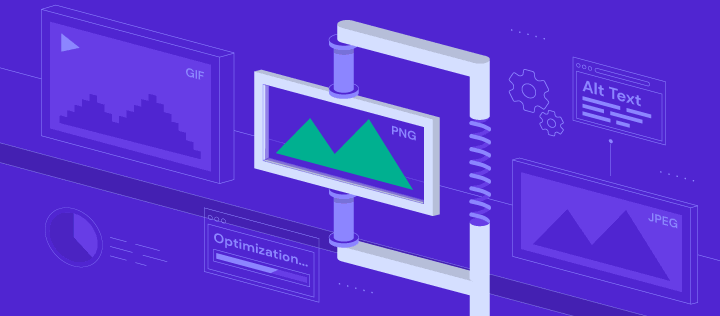
Open your website's media library and there's a good chance you'll find photos several megabytes each, straight off a phone or DSLR, doing a job that needs an image a tenth that size. Images are almost always the single biggest cause of a slow website, and the good news is they're one of the easiest problems to fix. Here's a practical guide to getting your images right.
Why unoptimised images slow your site down
A modern phone camera captures photos designed for printing or full-screen viewing — often thousands of pixels wide, at several megabytes a file. On a website, that same photo might display in a space a few hundred pixels wide. The browser still has to download the full, oversized file before it can shrink it to fit, so every visitor pays the price in load time whether they need that detail or not.
Multiply that across a homepage banner, a gallery of project photos and a few team headshots, and you've got a page pulling down far more data than it needs. On mobile data at a job site, or in a regional area with patchy reception, that can mean visitors give up before the page even renders. We've covered the broader picture in why website speed matters — images are usually where that story starts.
The image formats you actually need to know
Picking the right file format matters as much as the file size. Using the wrong one for the job wastes bandwidth for no visual benefit.
- JPEG — the standard for photos. Good compression, small files, quality that's fine at normal screen sizes.
- PNG — best for graphics, logos and anything needing a transparent background. Much larger than JPEG for photos, so avoid it there.
- WebP — a modern format, supported by all major browsers, that compresses noticeably smaller than JPEG or PNG at equivalent quality. A sensible default today.
- AVIF — an even newer format with stronger compression again, though support and tooling are still catching up.
| Format | Best for | File size | Transparency | Browser support |
|---|---|---|---|---|
| JPEG | Photos | Small–medium | No | Universal |
| PNG | Logos, graphics, screenshots | Large | Yes | Universal |
| WebP | Photos and graphics | Small | Yes | Excellent (all modern browsers) |
| AVIF | Photos where max compression matters | Smallest | Yes | Good and improving |
Most website platforms and image plugins will now automatically convert your uploads to WebP and serve a fallback for the rare older browser that needs it, so you get the benefit without managing two versions yourself.
Resize images to the size they'll actually display at
This is the step most business owners skip, and it's the one that matters most. If an image displays at 1200 pixels wide on your site, uploading a 4000-pixel original means downloading pixel data the visitor will never see. Resize the image to roughly the largest size it will ever display at before you upload it — not after, and not by leaving it to the browser.
A practical rule of thumb for common spots:
- Full-width hero banners: around 1800–2000 pixels wide.
- Content images and blog photos: around 1000–1200 pixels wide.
- Gallery thumbnails: around 400–600 pixels wide, with a larger version loaded only when clicked.
- Logos and icons: sized to their actual display dimensions, ideally as simple graphics rather than photos.
Picture a Byron Bay accommodation website with a gallery of thirty room and property photos, each one a full-resolution shot straight from the photographer's camera. Guests browsing on their phone from the beach, comparing properties, are exactly the visitors most likely to give up on a slow-loading gallery — and exactly the booking a resized, fast-loading set of photos protects.
Compress every image before it goes live
Resizing gets the dimensions right; compression gets the file size down further without a visible drop in quality. Most images can lose a meaningful chunk of their weight this way, with no difference the eye can spot.
- Built-in export settings in tools like Photoshop, Affinity Photo or free tools like Squoosh let you compare quality against file size before saving.
- WordPress plugins that compress and convert images on upload are genuinely useful if you publish new photos often — worth pairing with the other steps in our speed up your WordPress website guide.
- Platform-level optimisation on Shopify and similar hosted platforms increasingly compresses images automatically — still worth checking rather than assuming.
Lazy load images below the fold
Lazy loading means images further down the page only load once a visitor scrolls near them, rather than all at once when the page first opens. This gets the visible part of the page loading and usable faster, while everything below loads quietly in the background.
Most modern website platforms and themes support lazy loading natively now, often as a simple setting rather than something you need to build. The one exception is your very first, above-the-fold image — that one should load immediately, since it's usually the image that determines your Largest Contentful Paint score. Our Largest Contentful Paint guide explains why that image matters so much for Core Web Vitals.
Serve images through a CDN
A content delivery network (CDN) stores copies of your images on servers around the world and serves each visitor from the copy nearest to them, rather than making everyone fetch files from one server that might be on the other side of the country. For a business with customers spread across states, or any site getting overseas traffic, this can noticeably cut load times.
Many modern hosting platforms and website builders now include CDN delivery as standard, requiring little to no setup on your part. If you're not sure whether yours is switched on, ask your host or developer directly.
Give every image the correct width and height
Beyond load speed, images affect a specific and very visible Core Web Vitals metric: Cumulative Layout Shift (CLS). If a browser doesn't know an image's dimensions in advance, it reserves no space for it — then the rest of the page jumps around as the image loads and pushes everything else down. Anyone who has tapped a button just as an image loaded above it, and hit the wrong thing, has felt this firsthand.
Setting the correct width and height attributes on every image tells the browser exactly how much space to reserve before it arrives, so the layout stays stable from the first paint. Our Cumulative Layout Shift guide covers this in more detail, including other common causes of layout jumps worth checking at the same time.
Name files and write alt text properly
It's easy to treat file names and alt text as an afterthought, but both genuinely matter. Descriptive file names (launceston-deck-build-completed.jpg rather than IMG_4821.jpg) and clear alt text help search engines understand what an image shows, which supports visibility in image search and general SEO. Alt text also describes the image to visitors using screen readers, a core part of website accessibility and a genuine consideration, not a nice-to-have.
Picture a Launceston builder's portfolio page stacked with huge, generically named project photos and no alt text at all. Beyond the slow load, that builder is missing customers finding those photos through Google image search, and shutting out visitors who rely on a screen reader.
Key Takeaways
- Oversized camera and phone photos are the most common cause of a slow website.
- Use JPEG for photos, PNG for transparency, and WebP (or AVIF) for better compression.
- Resize images to the size they'll actually display at — don't rely on the browser.
- Compress every image before it goes live.
- Lazy load images below the fold, but load your main image immediately.
- A CDN gets images to distant visitors faster with little setup effort.
- Set width and height attributes on every image to prevent layout shift.
- Descriptive file names and alt text help both SEO and accessibility.
Frequently Asked Questions
What is image optimisation?
Image optimisation is preparing images so they load as fast as possible without a noticeable drop in quality. It covers choosing the right format, resizing to the display size, compressing the file, and adding the technical details — width, height and alt text — that help browsers and search engines handle the image correctly.
How much does image optimisation actually speed up a website?
It varies by site, but images are typically the largest files a page has to load, so getting them right usually delivers the biggest single improvement available. Google's PageSpeed Insights will flag unoptimised images specifically, and is a good way to see the impact on your own site before and after.
What is Largest Contentful Paint and why do images affect it?
Largest Contentful Paint (LCP) is a Core Web Vitals metric measuring how long the biggest visible element on a page takes to load — very often a hero image or banner photo. An oversized, uncompressed hero image is one of the most common reasons a site scores poorly. Our Largest Contentful Paint guide explains how to fix it.
Can unoptimised images really cause layout shift?
Yes. If a browser doesn't know an image's dimensions before it loads, it can't reserve space for it, so the page jumps as the image appears — measured as Cumulative Layout Shift. Setting width and height attributes on every image solves this regardless of file size or format.
Does image optimisation help with SEO?
Yes, in a couple of ways. Faster-loading pages are rewarded by Core Web Vitals, which factor into search rankings, and descriptive file names plus alt text help your images surface in image search results. It's a rare case where the technically correct thing also directly helps your marketing.
Where should I start if my whole website feels slow because of images?
Start with your homepage and any gallery or portfolio pages, since these usually carry the largest and most numerous images. Resize and compress the worst offenders first, add a CDN if you don't have one, and check your width and height attributes are set. Our how fast should a website load guide is a good next step for benchmarking where you stand.
Get a website that loads as fast as it looks
Unoptimised images quietly cost businesses enquiries every day — visitors who never wait for the gallery to load, or who bounce straight back to Google. If you'd like a website audit covering image optimisation and the rest of your Core Web Vitals, have a chat with Pixel and Pine. We'll show you exactly what's slowing your site down and fix it properly.